Give the camera a purpose
Use a push-in, tracking shot, orbit or focus change to direct attention. Explain where the camera starts and what it should reveal to show a product detail, follow a character or establish a space.
Claim 50 free credits · Check in for up to 100 weekly
Video Model
Use reference images to carry a visual style across a sequence. Reference images, keyframes and sound help you shape a clip for storyboards.
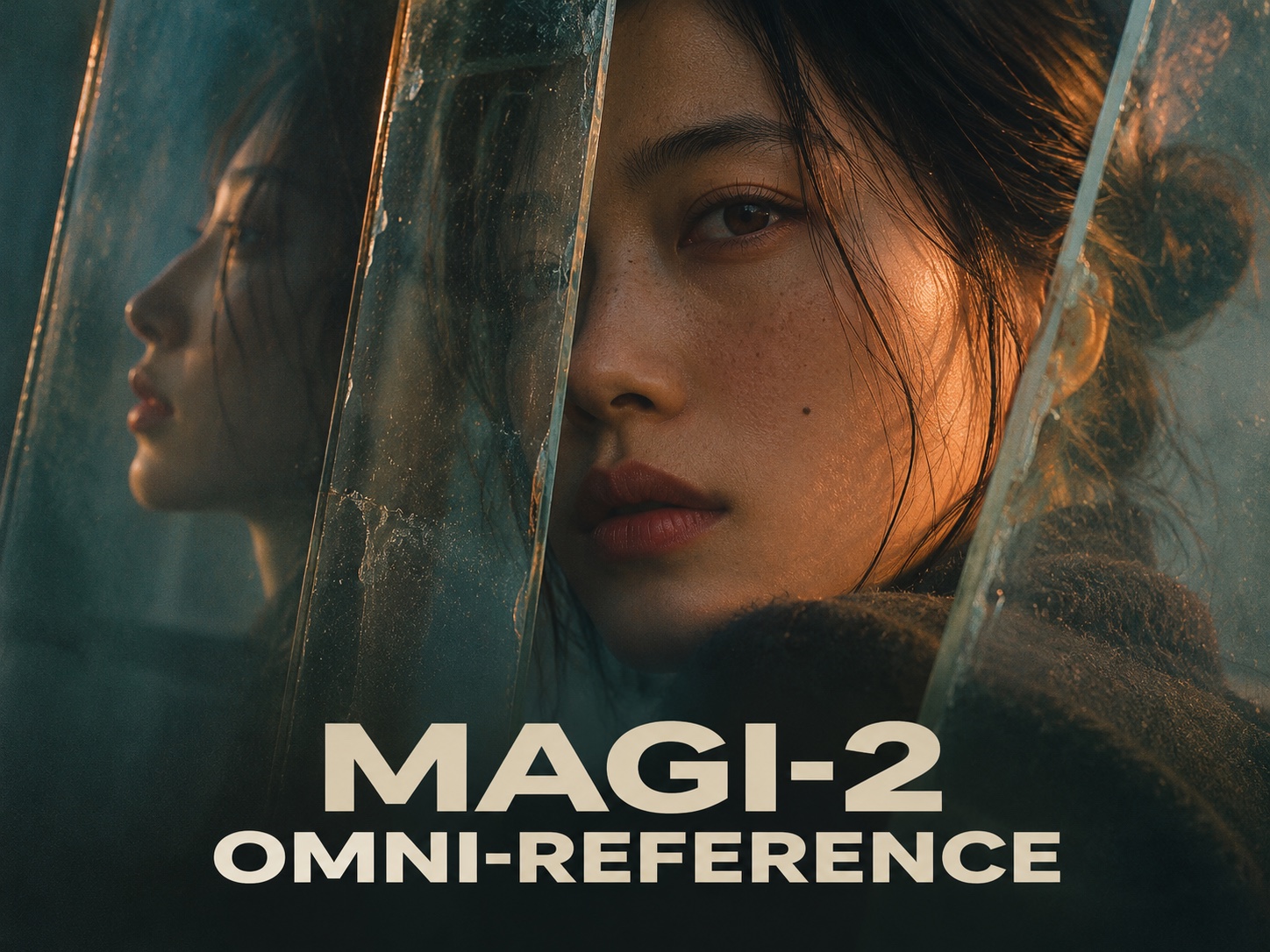
MAGI-2 Omni-Reference
Start with a prompt, reference images or keyframes. Describe the movement and add sound when the shot needs it.
Write the scene and camera motion in separate clauses. Use reference images for visual direction, or keyframes to define the opening and ending.
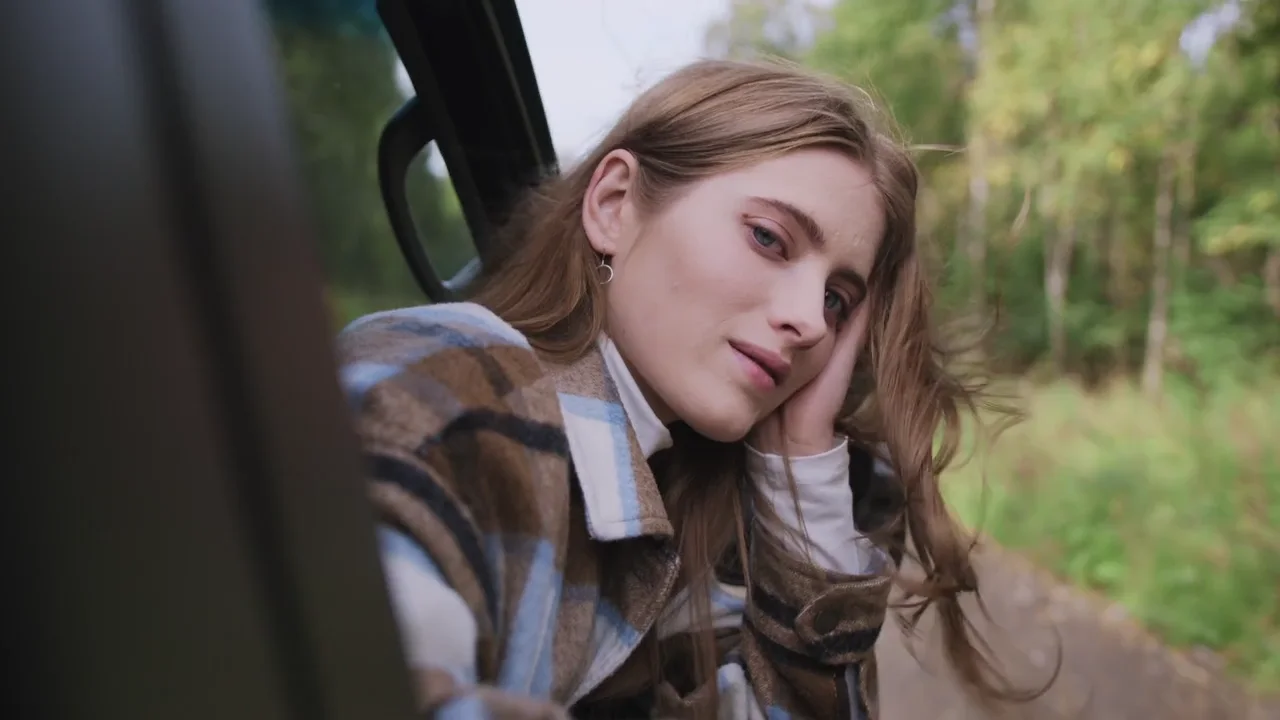
Use a push-in, tracking shot, orbit or focus change to direct attention. Explain where the camera starts and what it should reveal to show a product detail, follow a character or establish a space.
Describe cloth moving with a turn, rain hitting a table or wheels crossing wet ground. Give MAGI-2 an action with a beginning and a visible process so the scene has a concrete motion brief.
Image-to-video is useful when the product, character or opening composition is already defined. Let the still establish appearance and use text to explain the next action and camera movement.
Choose the process to show, then decide how to frame it and what belongs in the sound.
Establish a person, place and single action before trying camera positions and lighting. Carry subject notes between neighbouring shots so the draft supports a discussion about story and staging.
Start from a product still and describe a closer view, a person using the object or the object moving. Give each shot one purpose before assembling versions for different channels.
Connect the subject, controls and intended result in a specific scene.
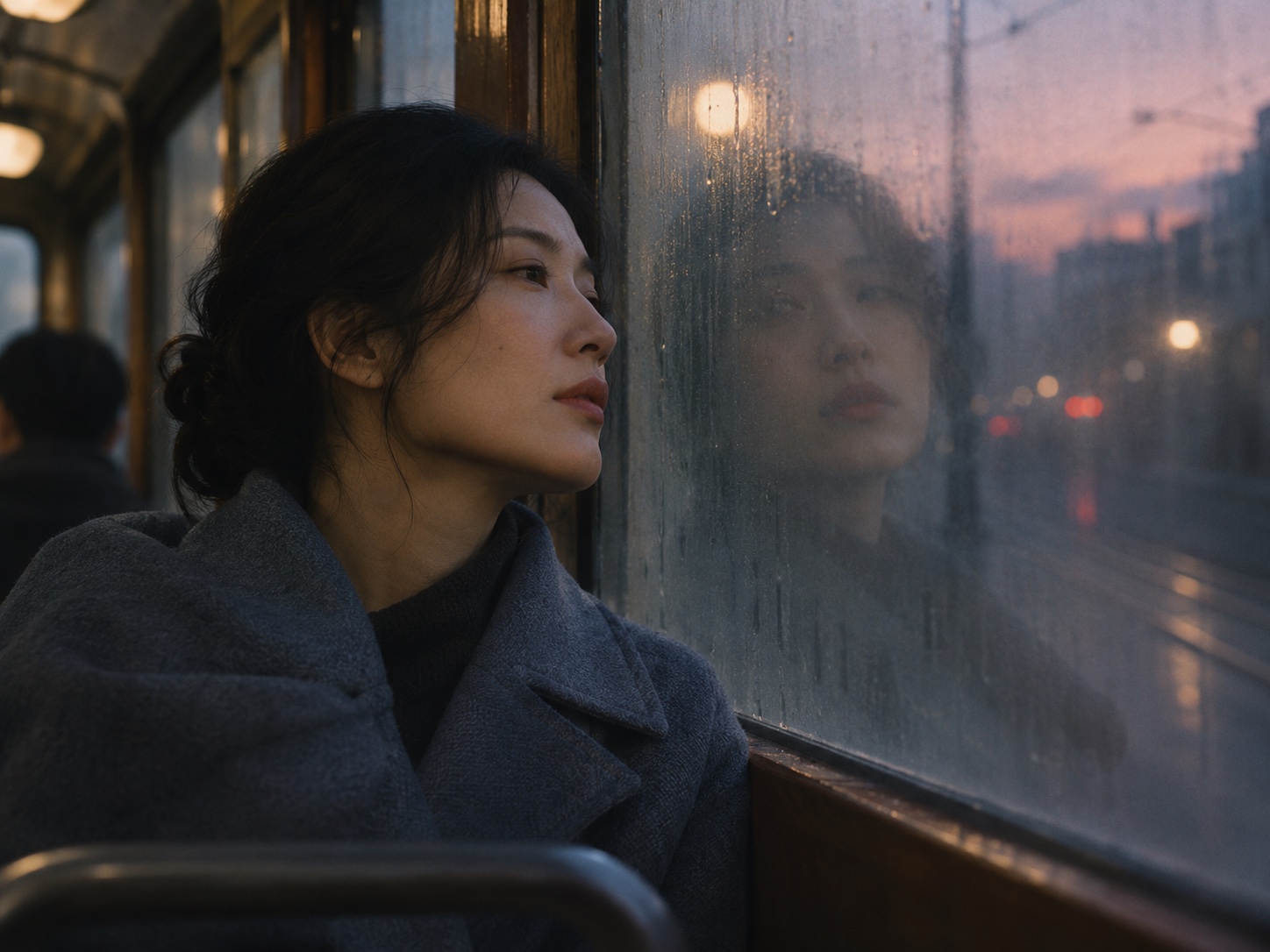
A slow push toward a perfume bottle and a tracking shot behind a person entering a room tell different stories. Describe the subject’s action first, then the camera position, direction and pace. This gives the shot a clear target for attention rather than a general request for a cinematic look.
Prompt idea: A person in a pale grey coat enters a glass greenhouse at dawn. The camera retreats slowly from inside, holding a medium shot. Dew on leaves, angled sunlight, light footsteps and birds in the ambience.
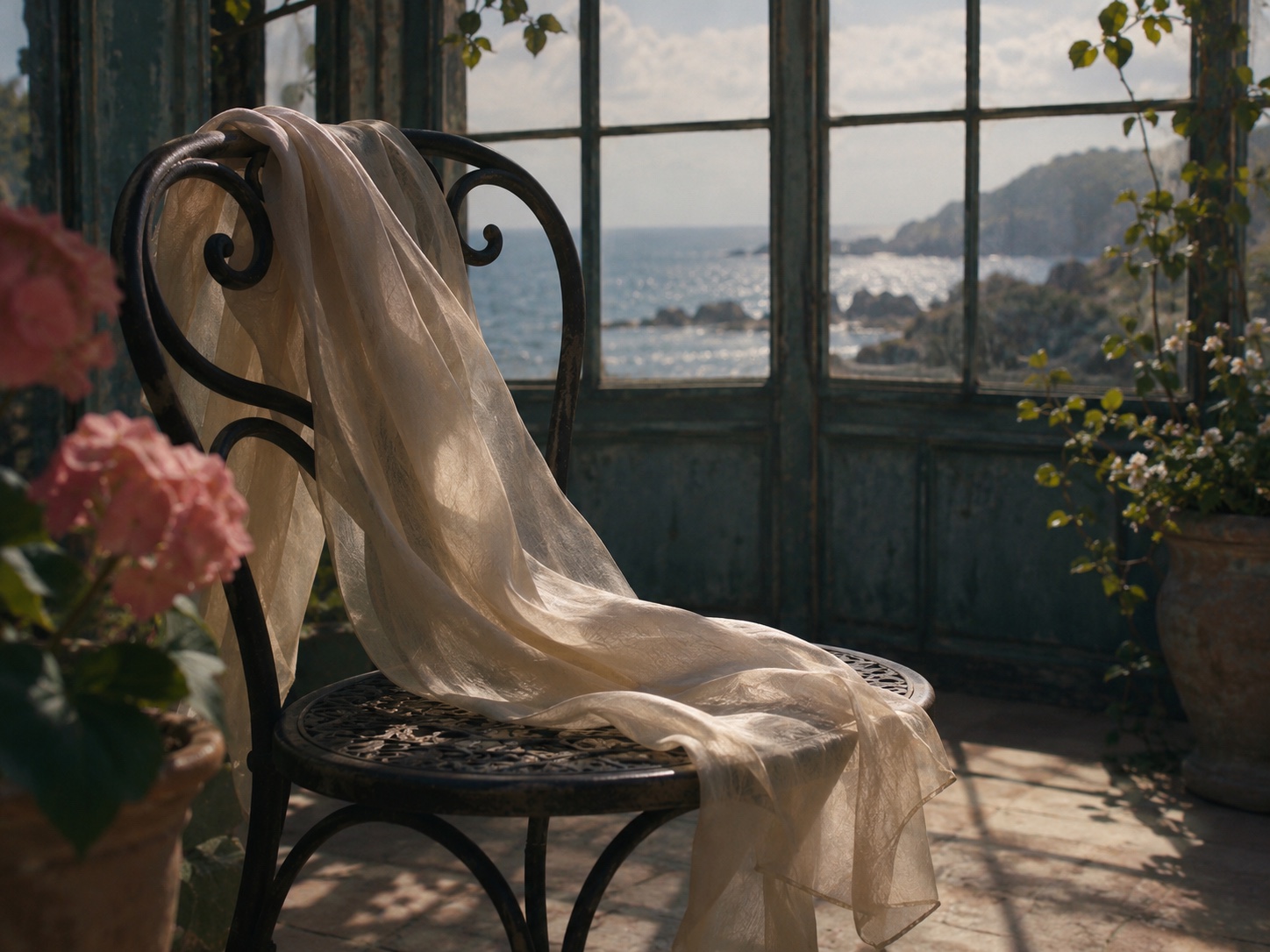
A hand gripping a cup, fabric following a moving body and liquid meeting a container all make an action more specific. Build a MAGI-2 scene around one of those processes before adding more characters or camera changes. It becomes easier to judge whether the movement serves the brief.
For a demonstration, explain the contact between hand and object. For an action shot, specify direction and speed. Describe what the viewer should see instead of asking only for spectacle.
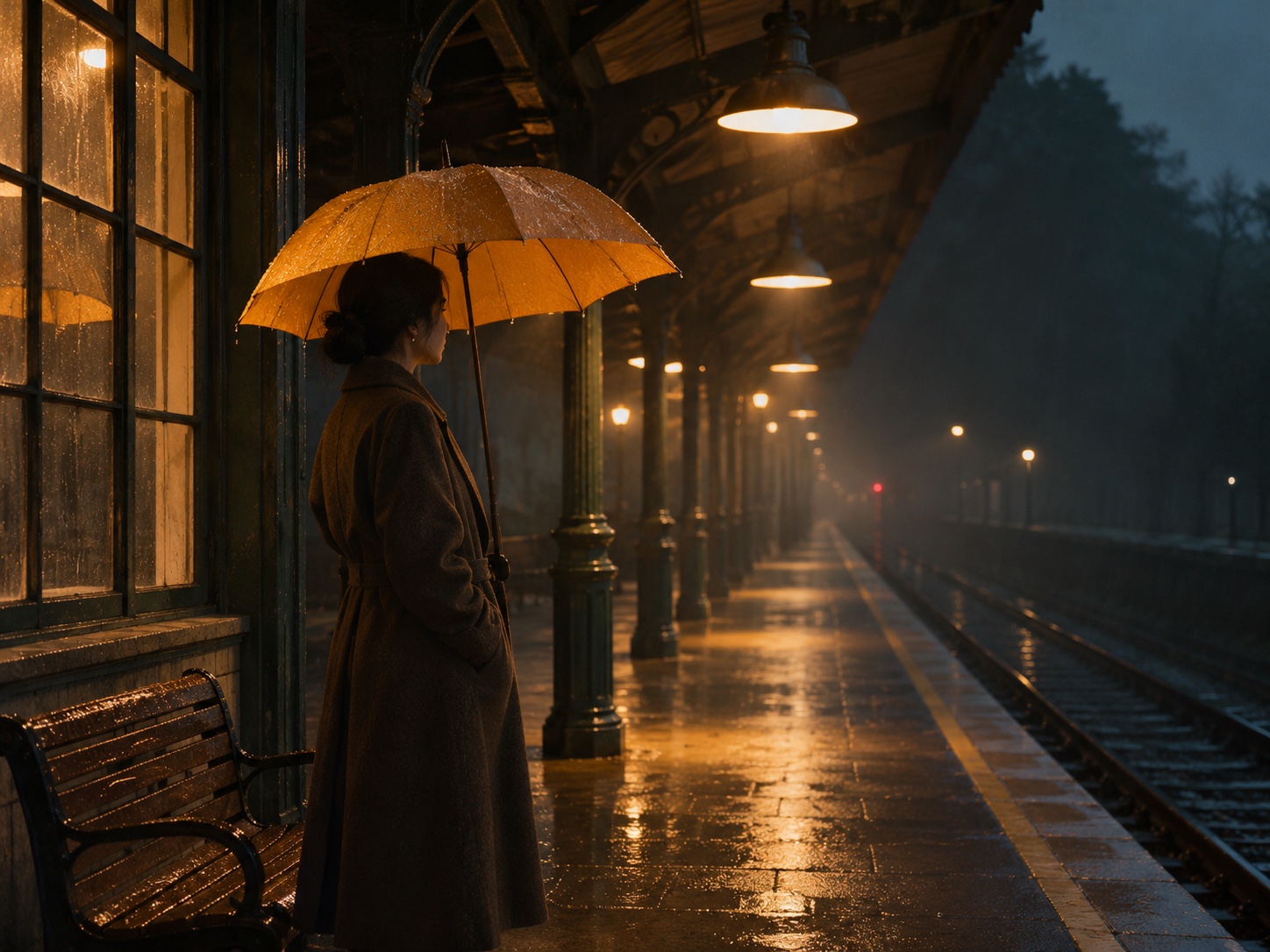
When the appearance of a person, product or composition is decided, an image can define the opening. State the subject features to retain and what should happen next. Reference modes and creative controls vary by MAGI-2 model; choose from the options shown in the workspace.
Prompt idea: Keep the red suitcase and station platform from the reference. A person lifts the case and walks right while the camera tracks sideways. Warm evening light on metal, a train slowly arriving in the distance.
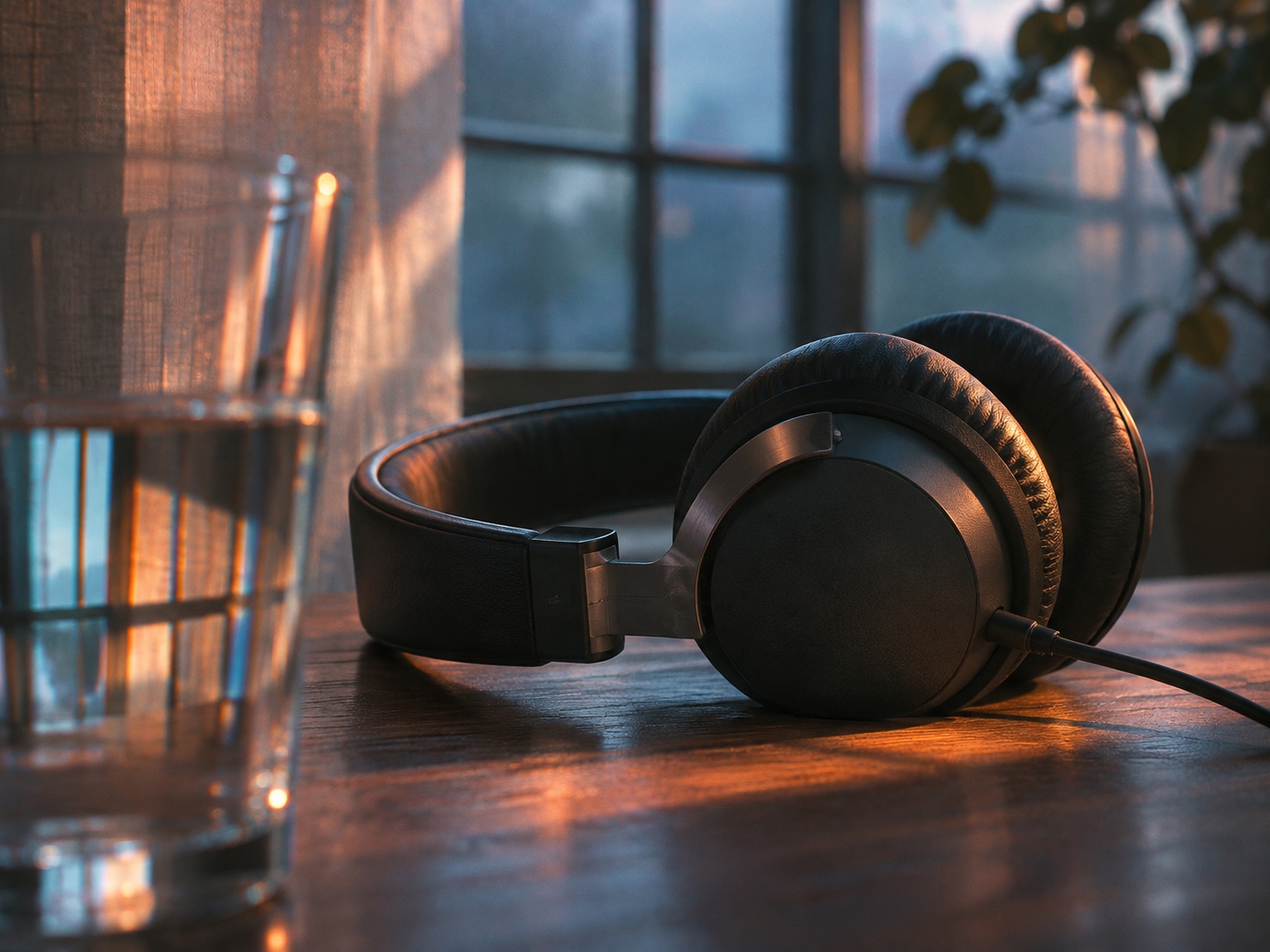
An audio-enabled MAGI-2 model can bring sound into video creation. Quote the line and identify its speaker, describe rain or room ambience, and say which action an effect should accompany. Keep music requirements separate from dialogue so each sound has a clear role.
For a café scene, plan the person placing a cup down, the sound of ceramic meeting the table and quiet conversation behind it. Listen to the result before deciding what to refine in the next version or final edit.
Keep the brief, review the result and make each revision deliberate.
Establish the subject and opening, then select the relevant MAGI-2 model and input mode.
Describe action, framing, movement and light; choose available duration, ratio and audio settings.
Review the action, subject and camera pace. For audio, listen to dialogue and ambience together.
Keep useful decisions, adjust one variable and place the shot back in the editing plan.
Use the same creative brief to organise a personal project or a shared production.
Explore openings, camera positions and character actions in the video workspace. Turn a script into shot drafts you can discuss before choosing a final narrative direction.
Carry product appearance and scene notes into video. Write separate shot briefs for details, demonstrations and social clips.
Write down what the image or shot needs to communicate.
Change one meaningful detail so you can judge its effect.
Check the final crop, text, rights and edit for the place it will be used.
Choose a credit pack for your creative projects. View the pricing page for all plans and allowances.
Start with a text prompt, up to ten reference images, or choose a first frame with an optional last frame. Image references and explicit frames are separate modes.
Turn synchronized sound on when the shot calls for speech, ambience or effects. You can leave it off for a silent clip.
Create one 480p or 720p clip per request, from 4 to 30 seconds. Use a short clip to try the composition before extending the idea into a longer shot.
The quote is shown in the workspace before submission. It depends on the selected resolution and duration.
Start with a prompt, reference images or keyframes. Describe the movement and add sound when the shot needs it.